How to Enable Unknown Apps on Firestick & Android TV Using Downloader (2026 Guide)
Installing IPTV players and third-party streaming apps on Firestick or Android TV requires enabling app installation from unknown sources. This allows your device to install APK files that are not available on the Amazon Appstore or Google Play Store.
In this updated 2026 guide, you’ll learn how to:
- Install the Downloader app on Firestick
- Unlock hidden Developer Options
- Enable unknown apps permissions safely
- Sideload IPTV APK files on Fire TV and Android TV
- Use Downloader codes to install IPTV players
Sideloading refers to installing applications from external sources instead of the official app store. Firestick and Android TV both support sideloading, making it possible to install IPTV players, streaming tools, and APK files manually.
Unlike rooting or jailbreaking, sideloading is a standard Android-based feature supported by Fire TV devices.
⚠️ Important: Only install APK files from trusted websites and verified developers.
Downloader is a popular utility app for Fire TV and Android TV devices that allows users to download APK files directly using links or Downloader codes.
Features include:
- Built-in web browser
- Fast APK downloads
- Simple TV remote navigation
- Direct file installation support
How to Prepare Firestick & Android TV for APK Installation
The Downloader app is one of the easiest ways to install APK files on Firestick and Android TV devices. It allows users to download third-party applications directly using URLs or Downloader short codes.
Step 1: Install Downloader on Firestick
Since Firestick blocks direct APK downloads through most browsers, Downloader is the recommended method for installing third-party applications safely.
Downloader is available directly from the Amazon Appstore and only takes a few minutes to install.
-
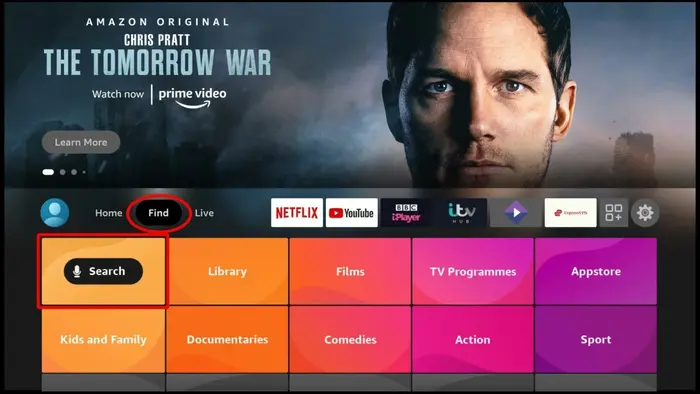
Open Search
From the Firestick home screen, go to Find and then select Search.
-
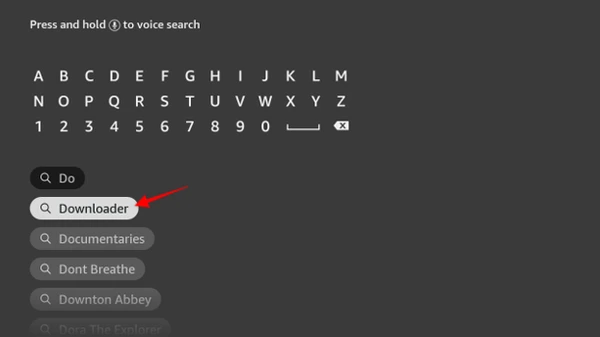
Search for Downloader
Type Downloader using the on-screen keyboard and select the app from the search suggestions.
-
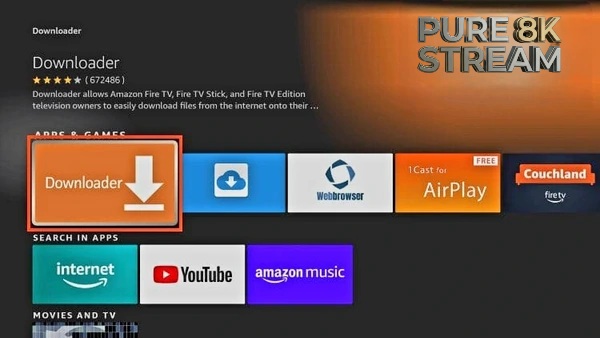
Download the App
Open the Downloader app page and click Download or Get.
Step 2: Enable Unknown Apps & Developer Options
Amazon Fire TV devices block third-party APK installations by default. Before sideloading IPTV apps or media players, you must manually enable Developer Options and allow Downloader to install external apps.
Allow Installation from Unknown Sources
Enabling this setting allows Downloader to install APK files directly on your Firestick or Android TV device.
-
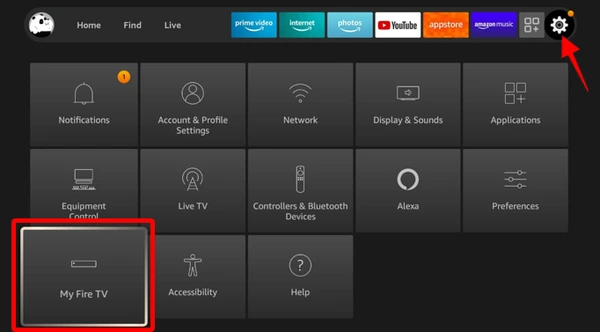
Open Fire TV Settings
From the Firestick home screen, open Settings and select My Fire TV.
-
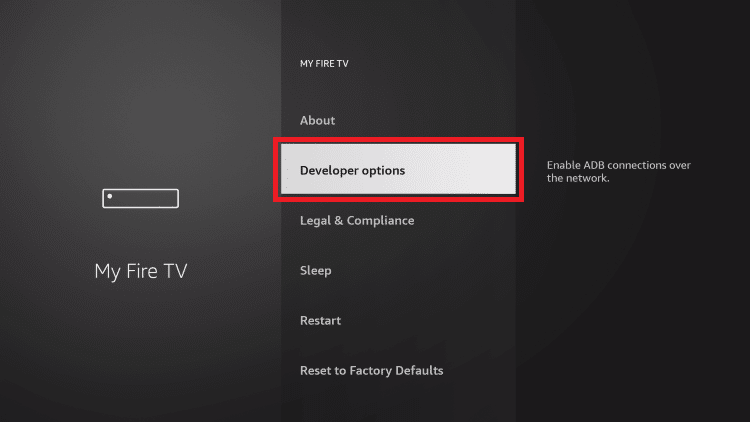
Open Developer Options
Select Developer Options from the menu.
-
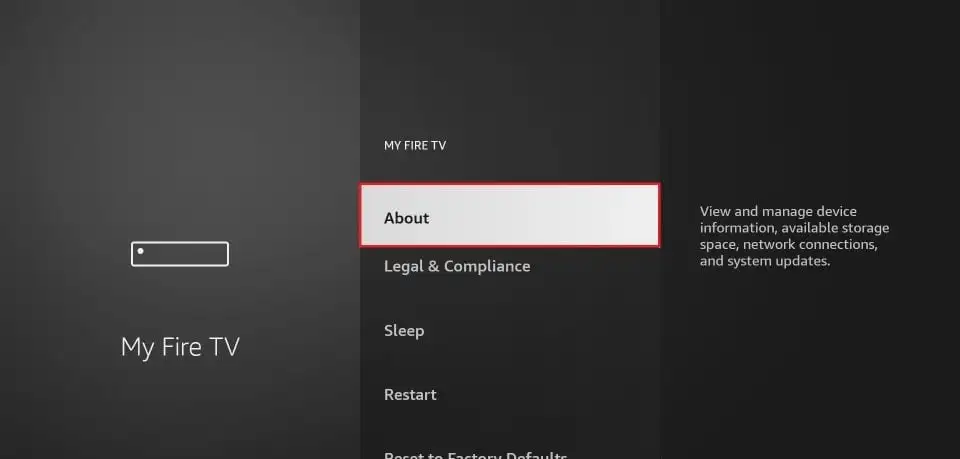
Developer Options Missing?
If Developer Options does not appear, open About inside My Fire TV.
-
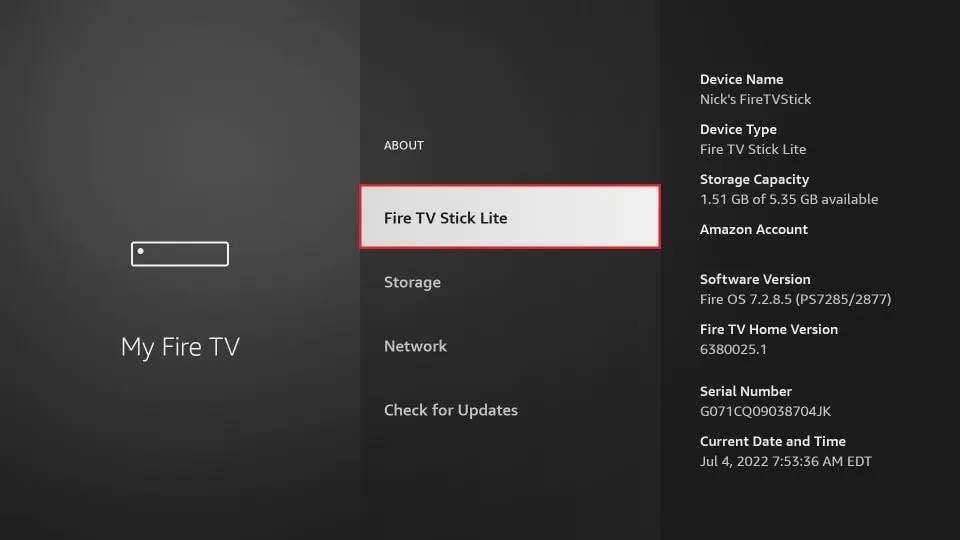
Unlock Developer Options
Click your Fire TV device name 7 times to enable hidden developer settings.
-
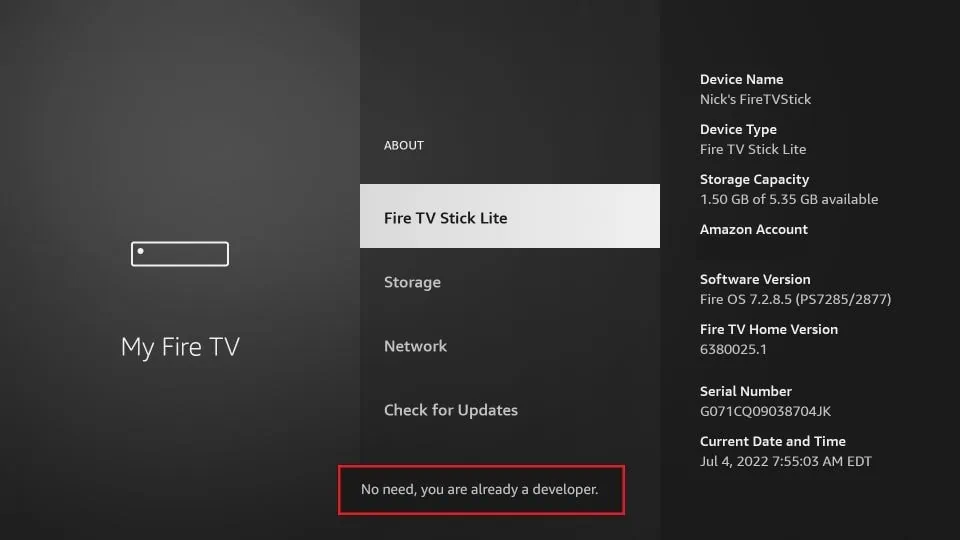
Developer Options Enabled
A confirmation message will appear after unlocking the feature.
-
Return to Developer Options
Open the newly unlocked Developer Options menu.
-
Enable Unknown Apps
For older Fire TV devices, turn on Apps from Unknown Sources.
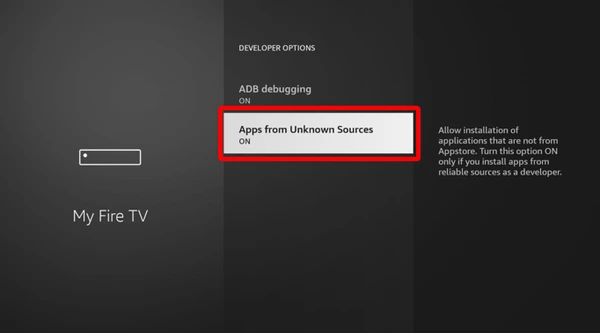
For newer Firestick Lite and Fire TV devices, select Install Unknown Apps and enable permission for Downloader.
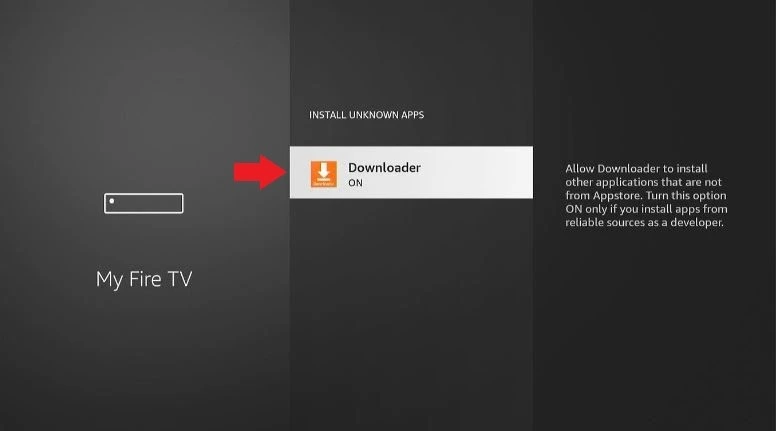
Your Firestick is now ready to install APK files using Downloader.
How to Install IPTV Apps Using Downloader Codes
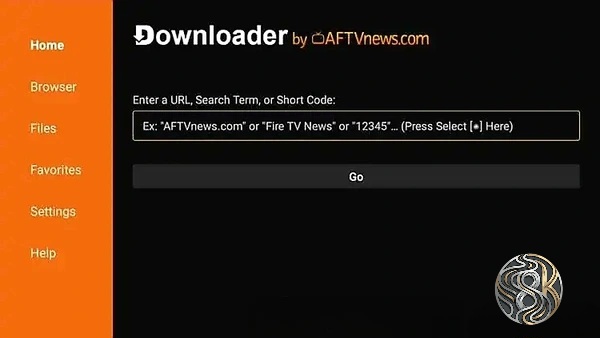
After enabling unknown apps permissions, you can install IPTV players by entering Downloader codes directly into the Downloader app.
1. IPTV Smarters Pro
One of the most widely used IPTV players for Fire TV devices, supporting Xtream Codes, M3U playlists, catch-up content, and multi-screen viewing.
View IPTV Smarters installation guide
Downloader Code:
250931
2. IBO Player Pro
A premium IPTV player designed for Smart TVs and Firestick devices with support for high-resolution streaming, modern layouts, and fast navigation.
Downloader Codes:
923441 or 5546232
3. GSE Smart IPTV
A flexible IPTV player compatible with multiple playlist formats, external players, subtitles, and advanced streaming settings.
Downloader Code:
298344
To install any IPTV player, open the Downloader app, enter the Downloader code in the URL field, and click Go. The APK file will download automatically and begin installation.
Common Firestick Downloader Problems
Developer Options Not Showing
Open Settings → My Fire TV → About and click your Fire TV device name 7 times to unlock hidden developer settings.
Downloader Not Installing
Restart your Firestick, verify your internet connection, and ensure your Amazon Appstore region supports app downloads.
APK Installation Blocked
Ensure Downloader has permission enabled under Install Unknown Apps.
Frequently Asked Questions
Is sideloading legal on Firestick?
Yes. Sideloading apps on Firestick is legal and supported by Amazon Fire TV devices.
Can I install APK files on Android TV?
Yes. Android TV devices support APK installation after enabling unknown apps permissions.
What is Downloader used for?
Downloader allows users to download and install APK files directly on Firestick and Android TV devices.
Why can't I see Developer Options?
Amazon hides Developer Options on newer Fire TV versions. Clicking your device name multiple times inside the About section unlocks the menu.
Conclusion
Your Firestick or Android TV device is now ready for APK installation and third-party streaming apps. With Downloader properly configured, you can install IPTV players, media applications, and additional streaming tools safely.
For smoother 4K streaming performance, a stable internet speed of at least 25 Mbps is recommended.